
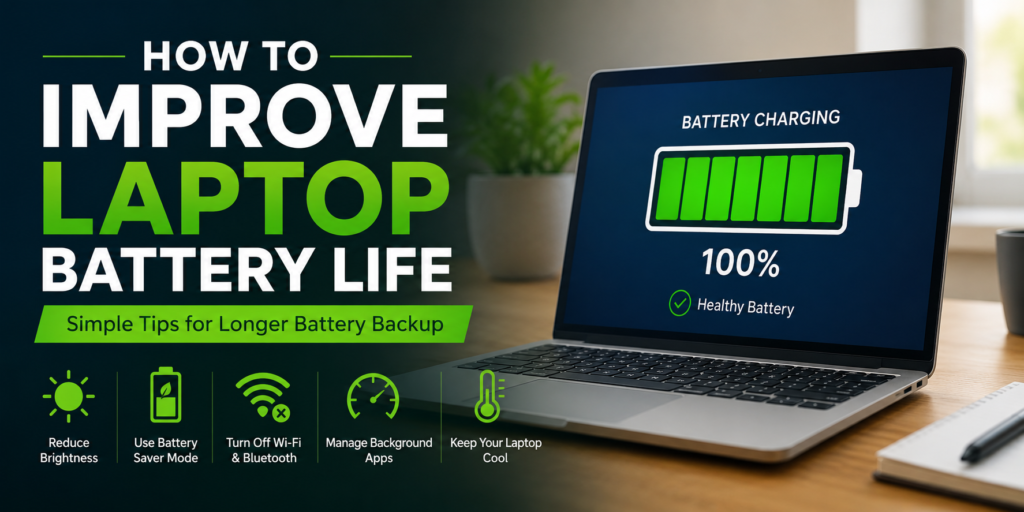
A laptop feels like a crucial device for students, professionals, gamers, and travelers, you know. Still, one of the most annoying moments is when the battery starts to drain, like way faster than it should. If you’re asking how to improve laptop battery life, you definitely aren’t the only one, trust me.
The good part is you usually don’t have to swap the battery right away. Small changes in your laptop settings , plus a few tweaks in how you use it, can really boost battery backup and also help the battery last longer over time.
In this guide, you’ll walk through practical and proven ways to improve laptop battery life on Windows laptops.
Why Does Laptop Battery Drain So Fast?
Before trying to fix the issue, it helps to figure out why batteries seem to lose power so fast. Often it’s not just one thing either. Usually, you end up with a mix like these:
- The screen is set to maximum brightness, so yeah, that alone can drain quickly
- Too many apps running in the background, even if you are not really using them
- The battery is old, or maybe it got damaged somehow
- Wi-Fi and Bluetooth are left on all the time
- High-performance power mode is enabled, which keeps things running harder
- Heavy software and games, they can demand a lot more energy
- Overheating, because the device tends to throttle and behave weird
- Outdated drivers and an old operating system too, they can cause power use to spike
Once you identify what the real cause is, it becomes way easier to apply the right solution, not just guessing at it, and hoping.
1. Reduce Screen Brightness
The display takes up more of your battery than most of the other laptop parts, which is kind of annoying but true. Try lowering the brightness to about 40–60% when you can, or even a bit less depending on the room.
Benefits you’ll notice
- it saves battery energy
- it can help reduce eye fatigue
- it produces less heat overall
Most laptops let you adjust brightness with the function keys, or through the Windows display settings, so you should be able to tweak it quickly.
2. Enable Battery Saver Mode
Windows comes with a built in Battery Saver feature , it kinda limits background tasks and it helps reduce power usage overall.
To turn it on, go to Settings → System → Power & Battery → Battery Saver.
Battery Saver is really handy when you are away from a charger, or if you are not near one for a while.
3. Close Unnecessary Background Apps
A lot of apps keep running in the background, even after you close them, sort of still “there”, you know.
For instance, cloud storage tools, messaging apps that stay connected, music streaming services that keep their little hooks, and game launchers that won’t fully shut down.
Press Ctrl + Shift + Esc, then open Task Manager and shut down the apps you don’t need anymore.
4. Use the Recommended Power Mode
Windows has a few power plans, kind of options you can switch:
- Best Performance
- Balanced
- Power Saver
For regular day to day stuff, pick Balanced or Power Efficiency, so you maximize battery life without losing too much speed. If you need max responsiveness well then go Best Performance, but otherwise Balanced tends to fit pretty well.
5. Turn Off Bluetooth and Wi-Fi When Not Needed
Wireless connections keep on scanning for nearby devices and networks, kind of endlessly.
If you are working offline, do this.
- Turn off Bluetooth
- Disable Wi-Fi
It seems like a small habit, but it can really make a noticeable improvement in battery life, day after day.
6. Disconnect External Devices
USB devices eat up battery power even if they’re not doing much at the moment, like, just sitting there.
For example:
- USB drives.
- external hard disks
- gaming controllers
- RGB keyboards or even those little wireless mouse receivers.
So if you’re trying to stretch battery time, remove the extra add-ons while you’re working on battery power.
7. Reduce Keyboard Backlight Brightness
A lot of laptops come with RGB glow or backlit keyboard s, kind of like a visual thing.
If you don’t really need that lighting, just:
turn it off, and also reduce brightness.
That can save extra battery power, especially on gaming laptops.
8. Keep Your Laptop Cool
Heat is basically one of the biggest enemies for lithium-ion batteries.
To keep things from overheating, try this in a kind of straight forward way:
- Set your laptop on a hard surface, like a desk.
- Clean out dust from the cooling vents. (Not too often, but regularly.)
- Don’t block the air vents, even a little.
- If needed use a cooling pad… it can help.
When your laptop stays cooler, it just runs better and the battery longevity gets protected too.
9. Update Windows and Drivers
Battery optimization can get a better groove after a software update, i mean, it really helps.
Also, it’s good to do it regularly, kinda like staying on top of things
- Windows
- Graphics drivers
- Chipset drivers
BIOS (only if the manufacturer says it’s a good idea, don’t just do it on a whim)
Most of the time these updates patch battery related trouble, and they also make power management act more efficiently.
10. Adjust Sleep and Display Settings
A lot of users leave their laptop just idle, for long periods.
So maybe set it so, your laptop
- Turn off the display after 5–10 minutes
- and go into Sleep mode after 10–15 minutes
This simple setup helps avoid the battery going down when you’re not even using it.
11. Limit Heavy Applications
Video editing software, modern games, and virtualization tools kind of gulp down a lot of electricity. Like, you know, lots of power is used in the process.
Examples are:
- Adobe Premiere Pro
- Photoshop
- Blender
- AutoCAD
- AAA PC games
Try to use these tools while your laptop is plugged in whenever it makes sense, and whenever possible.
12. Monitor Battery Usage
Windows lets you see what apps are draining the most battery, sort of.
Head over to Settings → System → Power & Battery → Battery Usage
Take a look at that summary from time to time, then remove the apps that are chewing through excessive power.
13. Charge Your Laptop Properly
Healthy charging habits can help your battery last longer , maybe even a lot longer. In practice, it’s better to stick with a few kinds of straightforward rules…
Try to keep the charge level between 20% and 80% when you can.
Avoid running it down to 0% again and again, this part matters more than you might think.
And don’t just leave the laptop plugged in 24/7 unless it has smart battery protection working in the background.
When you charge in a more careful way, it reduces long term battery wear and keeps everything healthier over time.
14. Use Genuine Chargers
Cheaps or just incompatible chargers might give you not so steady power.
Always use the:
- original charger
- A certified replacement charger from the laptop manufacturer, not from random places
Using quality chargers is also a good idea since it helps keep battery condition in good shape and makes sure charging stays safe.
15. Replace an Old Battery If Necessary
Laptop batteries tend to wear down naturally as time goes on, not instantly but gradually.
If your battery health looks like it has dropped quite a bit, and your backup time feels poor even after you do the usual tuning, then swapping the battery might be the best path.
In that case, always pick an original battery, or at least one that’s approved by the manufacturer, otherwise it can get weird with performance.
Additional Tips for Better Laptop Battery Life
Here are a few extra habits that, honestly, make a noticeable difference, even if it’s kind of small at first:
- Try using dark mode wherever it’s available.
- Turn the speaker volume down a bit.
- Turn off startup programs you don’t really need.
- Don’t keep your laptop in extreme hot or cold environments, if you can help it.
- Restart your laptop regularly, like every so often.
- Keep enough storage space free, so things run smoothly.
Little improvements tend to stack over time, and it shows.
Common Mistakes That Reduce Battery Life
Try not to do these things:
- Don’t keep your laptop at full brightness, for literally all day long.
- Try not to leave dozens of browser tabs open, like constantly.
- Don’t leave Bluetooth turned on when you don’t need it , unnecessarily.
- Don’t ignore Windows updates, even if it feels annoying.
- Try not to stay in high performance mode all the time, just because it seems faster.
- Don’t let the laptop overheat, that can mess things up.
- Avoid using a damaged charger or those counterfeit ones.
Staying away from these common missteps helps battery performance stay steady and last longer.
Frequently Asked Questions (FAQs)
1. How can I stretch my laptop battery life, really fast ?
Try dropping the screen brightness, switch on Battery Saver mode, and shut down or close those background apps that are doing not much. Also, unplug any devices you don’t need like USB sticks, mouse receivers, etc, and turn down the keyboard backlight brightness a bit.
2. Is it okay to keep my laptop plugged in all the time?
Most modern laptops include charging protection, so it won’t instantly ruin the battery, but it’s still smarter to not hover at 100% endlessly, especially if your model does not have a battery charge limit setting.
3. Roughly how long does a laptop battery last?
In general, laptop batteries often last about 2 to 5 years, or something like 300 to 1,000 charge cycles, depending on how you use it and the overall battery quality.
4. Does Battery Saver mode impact performance?
Yes. Battery Saver can reduce performance a bit , mostly by restricting background tasks and lowering power draw. It’s basically best when battery longevity matters more than raw speed.
5. Can laptop overheating harm my battery?
Yes. Too much heat speeds up wear on the battery, and it can shorten its lifespan quite a lot. Keeping the machine cool helps protect battery health.
6. Should I swap out my laptop battery?
If your battery drains rapidly, doesn’t keep a charge like it used to, or its health is way down, then replacement is usually the smarter choice.
Conclusion
Figure out how to improve your laptop battery life and you might stop constantly hunting for a charger, plus your laptop can run more smoothly. There are easy tweaks, like turning the screen brightness a bit lower, switching to Battery Saver mode, shutting down apps you don’t really need, making sure the laptop stays nice and cool, and using good charging habits, and yes these can create a real change in day to day backup, not just the long run battery condition.
Also keep in mind that, no matter what you do, every battery has an end. Still, careful treatment can extend the overall lifetime quite a lot. If you follow the advice in this guide, you should get longer unplugged time, steadier productivity, and a stronger overall experience from your laptop.
So, start with a few of these ideas today, and chances are you’ll spot a difference in battery longevity during your next few charging cycles.